Microsoft Keeps Closing the Local Account Loopholes in Windows 11, and the Age API Is the Reason…
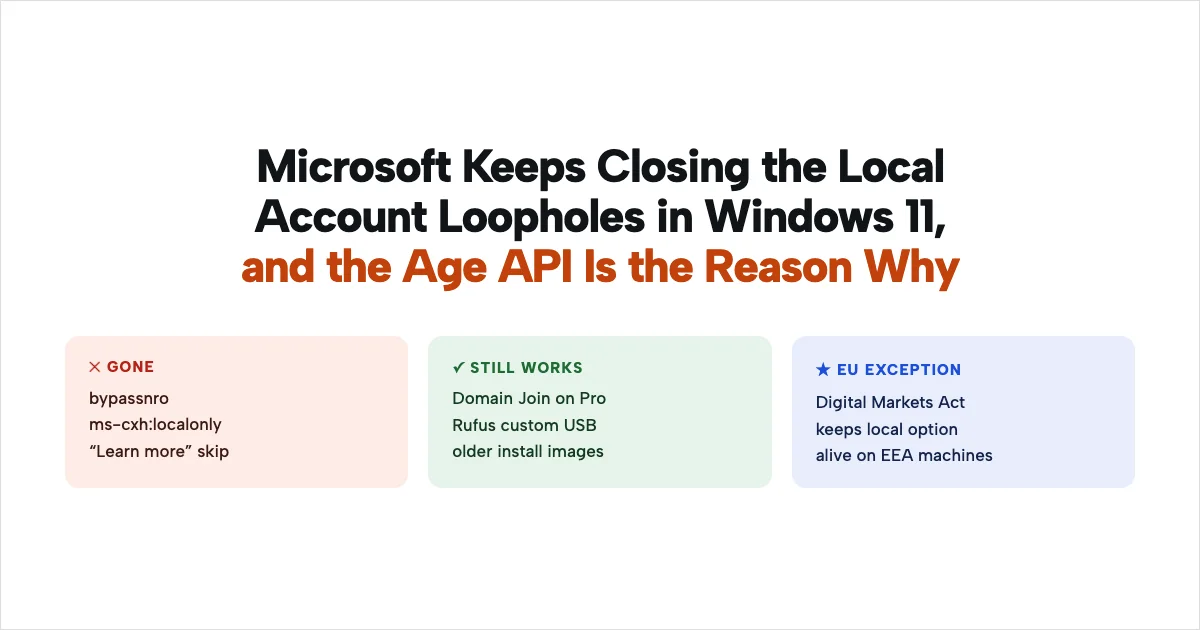
In October 2026 Microsoft quietly killed the last easy way to set up Windows 11 without a Microsoft account, after spending 2025 blocking the rest. I went through exactly which bypasses are gone, what still works, and why a new feature called the Windows age API, that reports whether you are a child, a teen, or an adult, is the piece that ties it all together. None of this requires a conspiracy to explain, the mechanism is on the record.
Last verified Also on Medium
On this page
- Why this matters to so many people right now
- What Microsoft has actually removed
- The official reason, and the fuller one
- The Windows age API is the piece that explains the push
- How age verification actually works, and where it is live
- Why the account model matters for your data
- What you can actually do about it
For years, setting up a new Windows PC with a plain local account, no email, no cloud sign in, was a known trick that enthusiasts passed around. Type a command, click a hidden link, and you could finish setup with an account that lived only on your machine. Over 2025 and 2026 Microsoft has closed those doors one by one, and the most recent closure landed in October 2026. I want to lay out what actually changed, because the facts are more specific, and more interesting, than the outrage around them.
Why this matters to so many people right now
The timing is not an accident. Windows 10 reached end of support on 14 October 2025, which means no more security updates for the version that, as recently as July 2025, still ran on about 45% of the world’s desktops. Windows 11 only overtook it in mid 2025, reaching roughly 52% share against Windows 10’s 45% in StatCounter’s July 2025 numbers. So a very large population of people is being pushed onto Windows 11 right now, either by buying a new machine or by upgrading an old one, and every one of them meets the new setup flow. The account requirement is not a niche annoyance for enthusiasts, it is the first thing a wave of ordinary upgraders runs into.
What Microsoft has actually removed
The bypasses fell in waves. In an Insider build announced on 6 October 2025, Microsoft said it was removing known mechanisms for creating a local account during setup. Testing of that build found that the popular command line tricks were dead, oobe\bypassnro, the start ms-cxh:localonly command, the BypassNRO registry value, and even the old habit of typing a fake email to force an error were all blocked.
Then on 9 October 2026, a researcher who goes by Bob Pony noticed the last easy one was gone. There had been a “Learn more” link on the Microsoft account screen that, when clicked, let you skip sign in without touching a command line. On a fresh 26H2 install it no longer skips anything, it just opens a data management page whose only button sends you back to the sign in screen. Microsoft closed it server side, with no mention in any update notes.
So the simple, click only escape hatches are gone. A couple of harder routes still work for now. On Windows 11 Pro you can use Domain Join to create a local account, and you can build a custom install USB with a tool like Rufus that strips the Microsoft account requirement before you ever boot. Some older public install images also still accept the old commands, because the blocks appeared in Insider builds first and spread from there. Those are unsupported workarounds, and Microsoft has shown it will close them when they get attention.
There is a regional carve out worth knowing. In the European Economic Area, Microsoft has loosened several Windows requirements to comply with the Digital Markets Act, the EU competition law that forces large platforms to give users more control. That is why reports of a local account option surviving tend to come from EU machines. Where regulators have teeth, the option stays. Where they do not, it disappears.
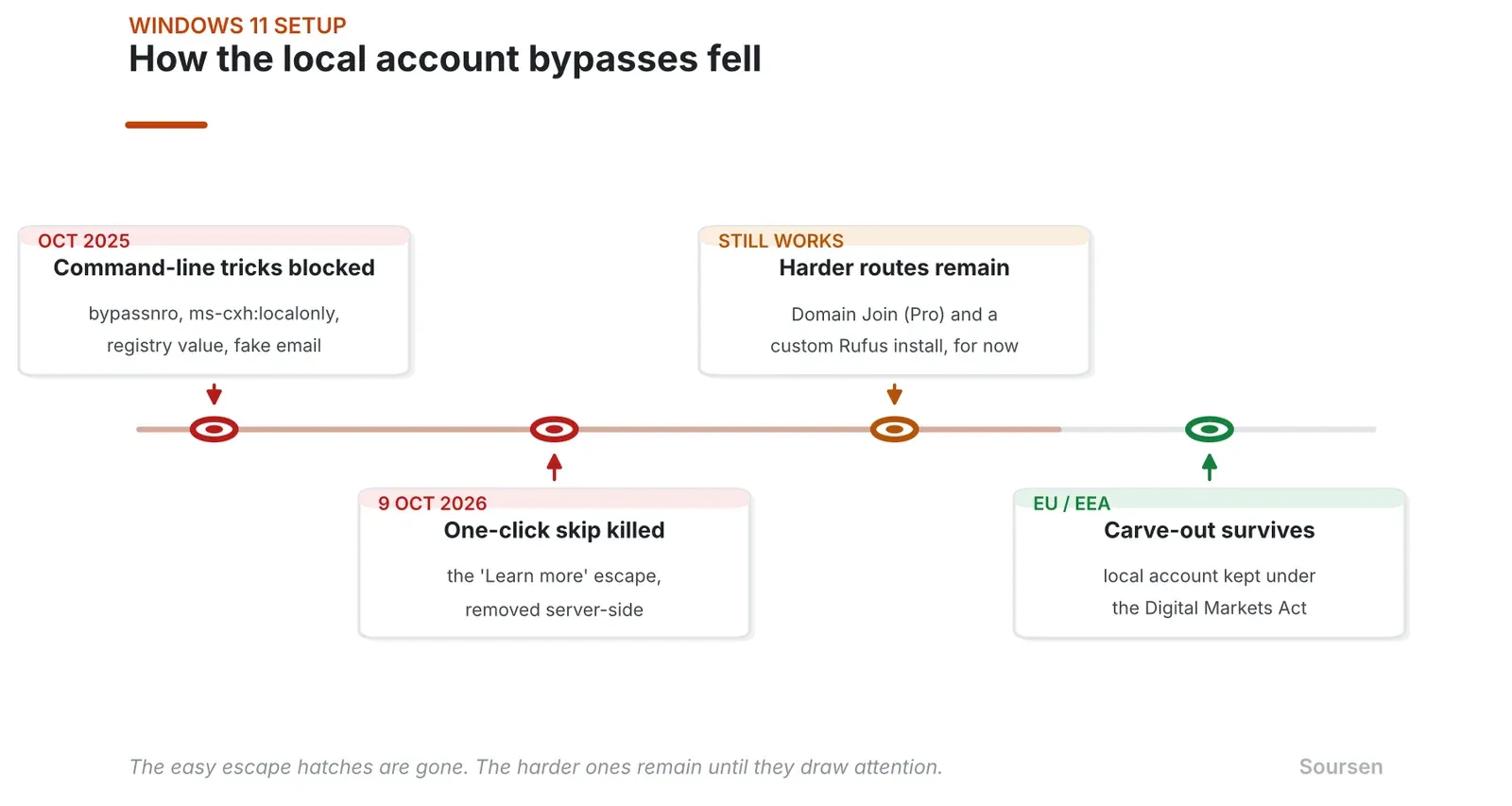
Figure 1. How the local account bypasses fell. Through 2025 Microsoft blocked the command line tricks like bypassnro and ms-cxh:localonly, and in October 2026 it killed the one click “Learn more” skip. Domain Join and a custom Rufus install still work for now, and the EU keeps a carve out under the Digital Markets Act. Source: Author timeline based on Windows Latest and AlternativeTo reporting
The official reason, and the fuller one
Microsoft’s stated reason is that a Microsoft account gives you a machine that is “fully configured,” tied into OneDrive, Microsoft 365, Outlook, Xbox, the Microsoft Store, Copilot, cloud backups, cross device syncing, and Windows activation. All of that is true. A Microsoft account does connect your PC to that ecosystem from the first boot, and for people who want those services it is genuinely more convenient.
The part the convenience story leaves out is what the account does for Microsoft. A signed in account ties every machine to a verified individual, which makes your activity on that computer attributable to a real person rather than just a device. That matters for data, and in 2026 it matters for a specific new feature.
The Windows age API is the piece that explains the push
In late 2026 Microsoft started adding what it calls age assurance to Windows, through a pair of developer APIs. An app can call GetUserAgeRangeAsync to learn which age bracket you fall into, and GetAgeVerificationStatusAsync to learn whether that age was actually verified or just self reported. The brackets are under 10, 10 to 12, 13 to 15, 16 to 17, and 18 plus. Apps do not see your date of birth, only the range, and whether it is confirmed.
That age lives in your Microsoft account. Microsoft stores the verified status with the account through a system it calls Microsoft Age Verification. So the age feature only works if you are signed into a Microsoft account, which is exactly the thing setup now pushes everyone toward. The 2 stories line up. Closing the local account loopholes and rolling out an account bound age signal are the same project seen from 2 angles.
Why build this now? Governments around the world are passing online age rules, and platforms need a way to tell a child from an adult at the operating system level rather than asking every single app to figure it out. An OS level age signal is Microsoft’s answer. Whether you think that is a reasonable response to real child safety laws or an overreach depends on your politics, and reasonable people land in both camps. The mechanism itself is not in dispute.
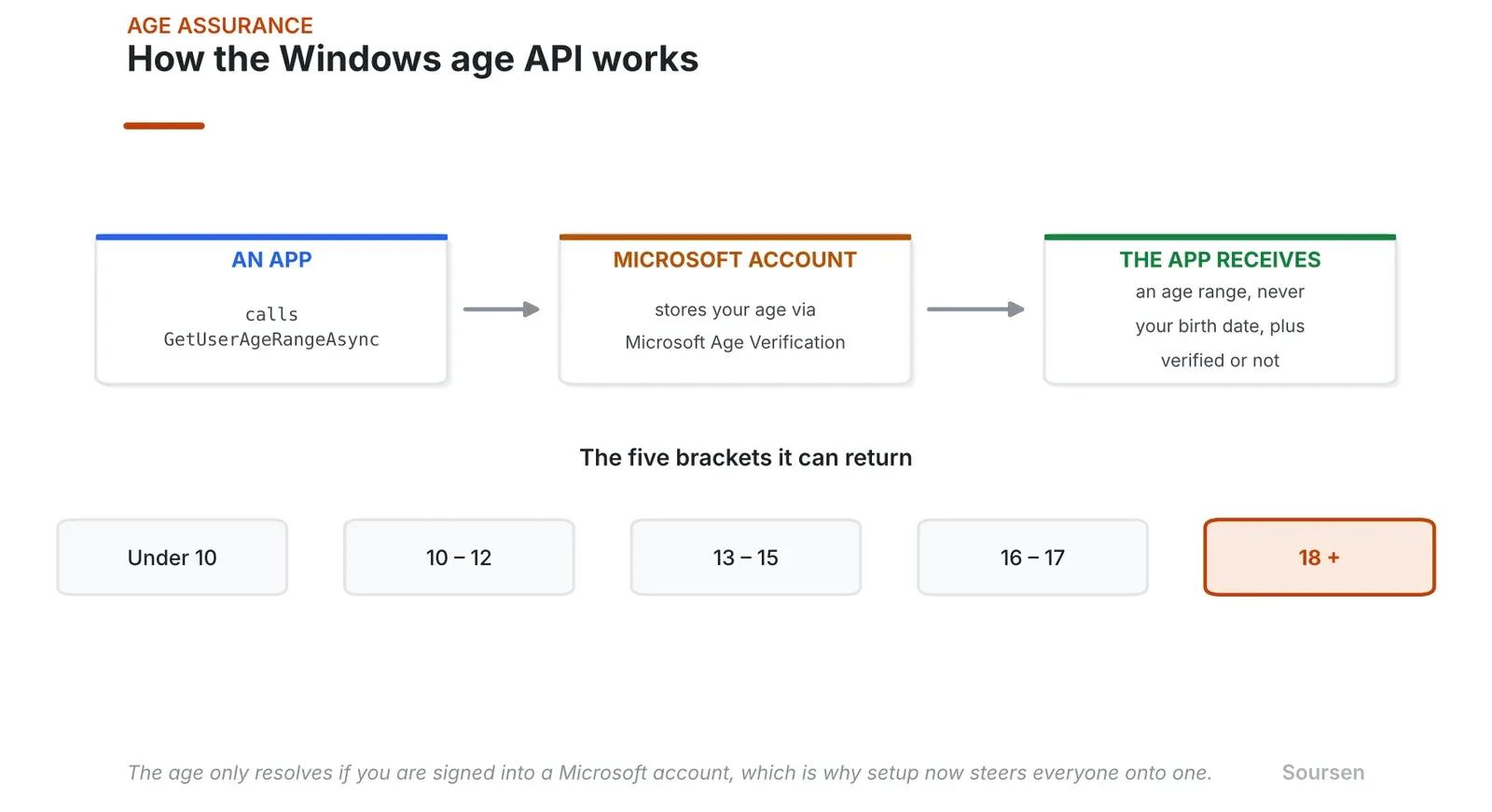
Figure 2. How the Windows age API works. An app calls GetUserAgeRangeAsync and gets back 1 of 5 brackets, under 10 through 18 plus, plus whether the age was verified. The value lives in your Microsoft account through Microsoft Age Verification, which is why setup now steers everyone onto an account. Source: Author diagram based on Microsoft developer documentation and BleepingComputer
How age verification actually works, and where it is live
Self reporting your age is one thing. Verifying it is another, and this is where the privacy tradeoffs get real. When an app or a region requires a confirmed age, Microsoft routes you to its Age Verification flow, and the methods vary by country. Reported options include a facial age estimate from a selfie, uploading a government identity document, or in some flows confirming you are over 18 with a credit card. Different regions use different third party verification partners, chosen by where you are.
This is not switched on everywhere. As of the rollout, age verification through Microsoft storefronts is live in Singapore, Brazil, and Australia, with more regions planned, and the underlying age APIs are broadly available to Windows Insiders ahead of a wider release. The feature is real and shipping today, though how much of it you encounter still depends on where you live and which apps adopt it.
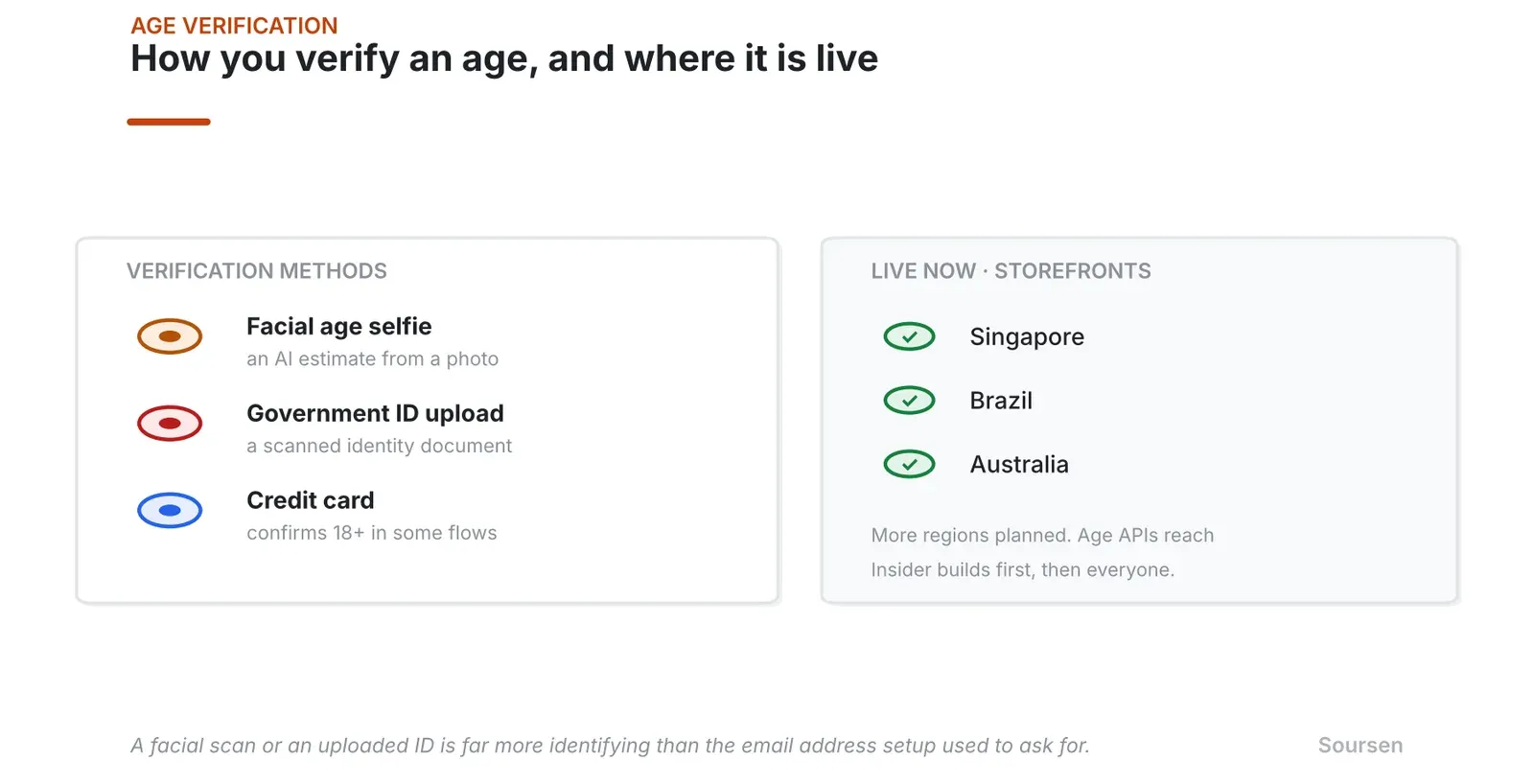
Figure 3. How you verify an age, and where it is live. The methods reported include a facial age selfie, a government ID upload, or a credit card in some flows, with the partner chosen by region. Verification through Microsoft storefronts is live in Singapore, Brazil, and Australia so far. Source: Author summary based on PCWorld and Microsoft documentation
The uncomfortable math is simple. A facial scan or an uploaded ID is far more identifying than an email address ever was. If age checks become common and they run through your Microsoft account, then using Windows increasingly means being a verified, named individual to Microsoft and to whoever it is legally required to answer. That is a real shift in what a personal computer is, from a device you own to an account you log into.
Why the account model matters for your data
There is a knock on effect people miss. Once your machine is tied to a Microsoft account and your files sync to OneDrive, the question of who can read those files becomes important. Microsoft does not offer end to end encryption for consumer OneDrive data, which means Microsoft holds the keys and can access the files you store there, and can hand them to law enforcement under a lawful request. Apple, by contrast, offers Advanced Data Protection that even Apple cannot read. For a cloud bound account model, that gap is the whole ballgame, the more your computing lives inside an account you do not control the encryption for, the less of it is truly private.
There is a second lever that points the same way. Starting with the 24H2 release, a clean install of Windows 11 turns on BitLocker device encryption automatically the first time you sign in, and it backs up the recovery key to your Microsoft or work account. Microsoft also dropped the old hardware requirements for this, so it now reaches ordinary Windows 11 Home machines too. Encrypting the disk is good for security, a stolen laptop stays locked. The catch is where the key goes. Once the recovery key sits in your Microsoft account, Microsoft can produce it, and so can anyone who compels Microsoft to. The encryption protects you from a thief and leaves you readable to the company and to a lawful request. That tradeoff is reasonable for many people, and it is one more reason the account has become the thing your whole machine hangs off.
None of this means a Microsoft account is useless or that everyone should avoid it. The sync, the backups, and the cross device features are real conveniences that many people reasonably want. The honest framing is that the account is no longer optional in the way it used to be, that it now carries an age signal tied to your identity, and that the data inside it is readable by Microsoft. Knowing that is the difference between choosing the account and being quietly funneled into it.
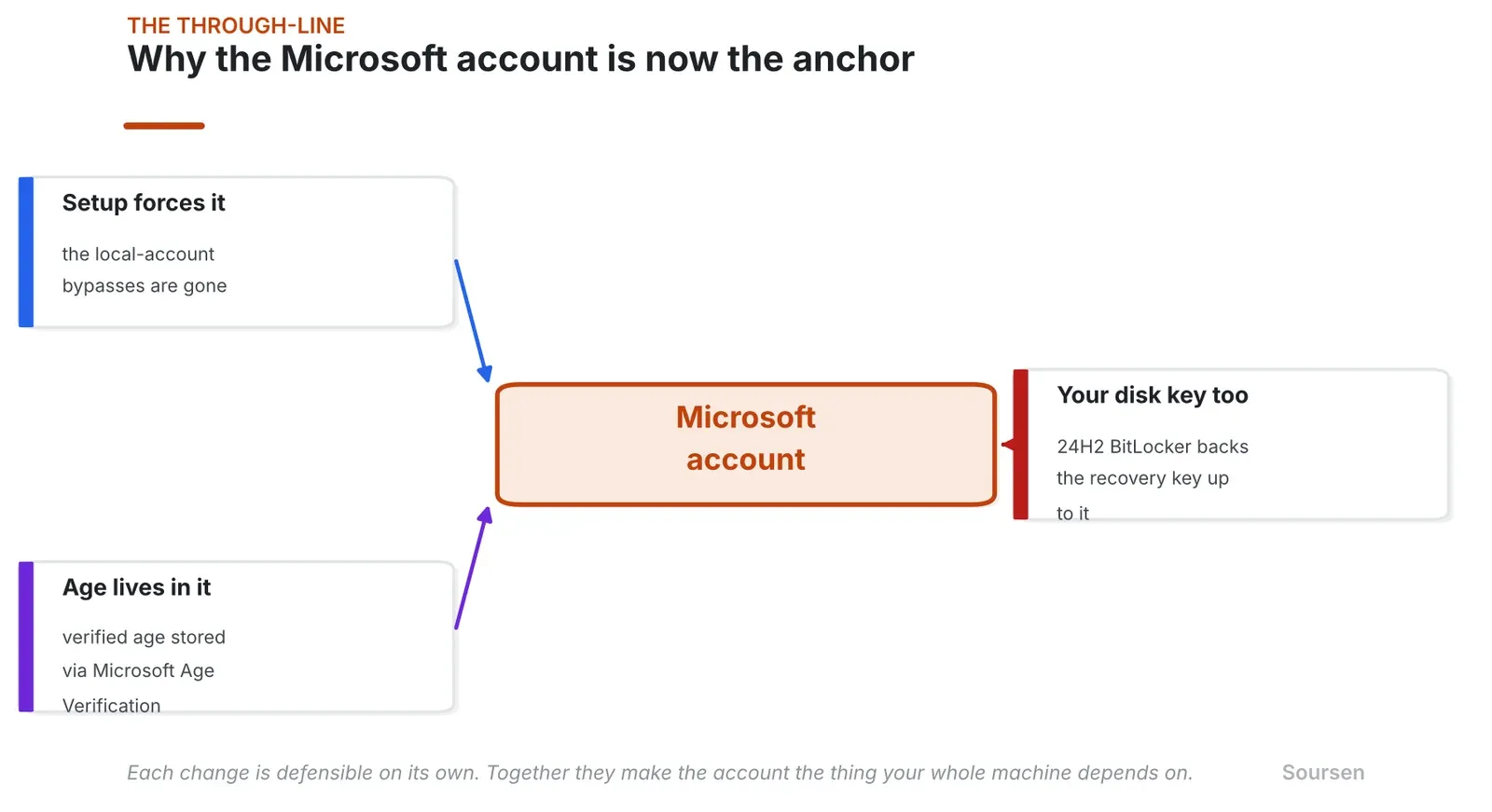
Figure 4. Why the Microsoft account has become the anchor. Three separate changes all run through it, setup now forces the account, the age API stores your verified age in it, and 24H2 BitLocker backs up your disk recovery key to it. Each is defensible on its own, and together they make the account the thing your whole machine depends on. Source: Author diagram based on Microsoft documentation and reporting
What you can actually do about it
If you want a Windows machine with a local account today, the realistic paths are narrow and may not last. On Windows 11 Pro, Domain Join still creates a local account during setup. A custom install USB built with Rufus can remove the Microsoft account requirement before setup runs, and that is the most reliable method as of now. If you are in the EU or EEA, your machine may still offer a local account option directly, thanks to the Digital Markets Act. On any machine, you can create the Microsoft account during setup and then add a local administrator account afterward and switch to it, though that still means the account existed at least once.
The larger choice is the one the video that prompted this gets to, if a computer with no mandatory vendor account and no account bound age signal is what you want, that path now runs through Linux, where account creation, cloud sync, and age features are all optional. That is a bigger jump, and not the right call for everyone. For most people the practical takeaway is smaller, understand that Windows 11 setup is now built to put you on a Microsoft account, that the account is becoming the anchor for an age identity, and that the convenience and the tracking are 2 sides of the same sign in.
Sources
- Windows 11 now blocks Microsoft account bypasses during setup, AlternativeToalternativeto.net. Accessed 27 October 2026.
- Microsoft quietly kills the easiest local account bypass, Windows Latestwindowslatest.com. Accessed 27 October 2026.
- Microsoft adds age awareness APIs for Windows, BleepingComputerbleepingcomputer.com. Accessed 27 October 2026.
- Windows 11 will soon tell apps how old you are, PCWorldpcworld.com. Accessed 27 October 2026.
- Microsoft account age assurance, Microsoft Supportsupport.microsoft.com. Accessed 27 October 2026.
- Microsoft lets EU users uninstall Edge and relax requirements under the DMA, Windows Centralwindowscentral.com. Accessed 27 October 2026.
- Windows 10 reaches end of support, The Registertheregister.com. Accessed 27 October 2026.
- Windows 11 overtakes Windows 10 as most used desktop OS, Computingcomputing.co.uk. Accessed 27 October 2026.
- Microsoft enables BitLocker device encryption by default on Windows 11, The Verge via Slashdottech.slashdot.org. Accessed 27 October 2026.
Related stories
AI & GPU compute
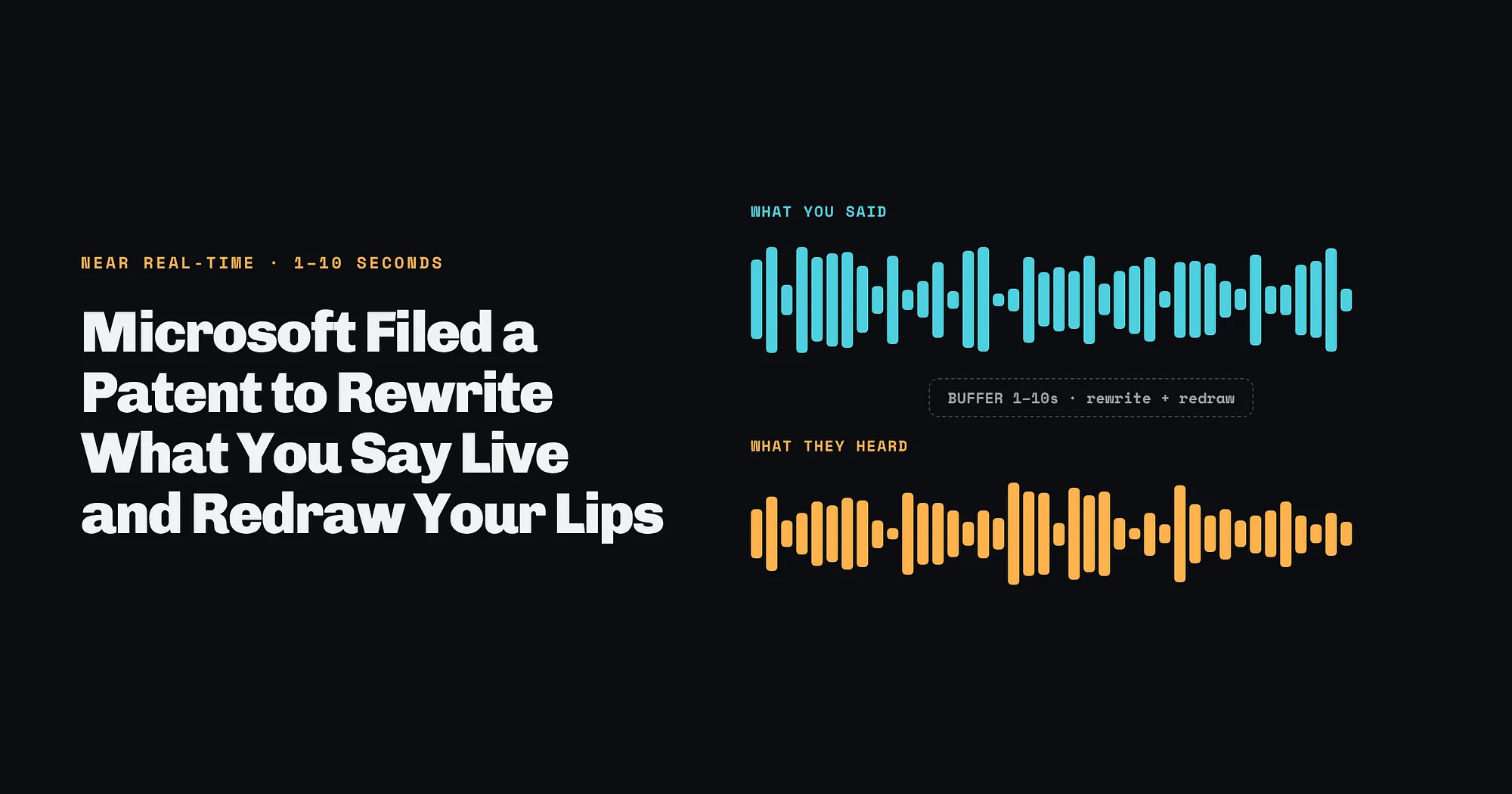
Microsoft Filed a Patent to Rewrite What You Say Live and Redraw Your Lips
Application US 2026/0341309 A1 describes swapping words in live video within 1 to 10 seconds, tailored to each viewer’s profile. The main claim says nothing about telling viewers, no patent has been granted, and nearly every piece of the idea already ships somewhere.
Infrastructure
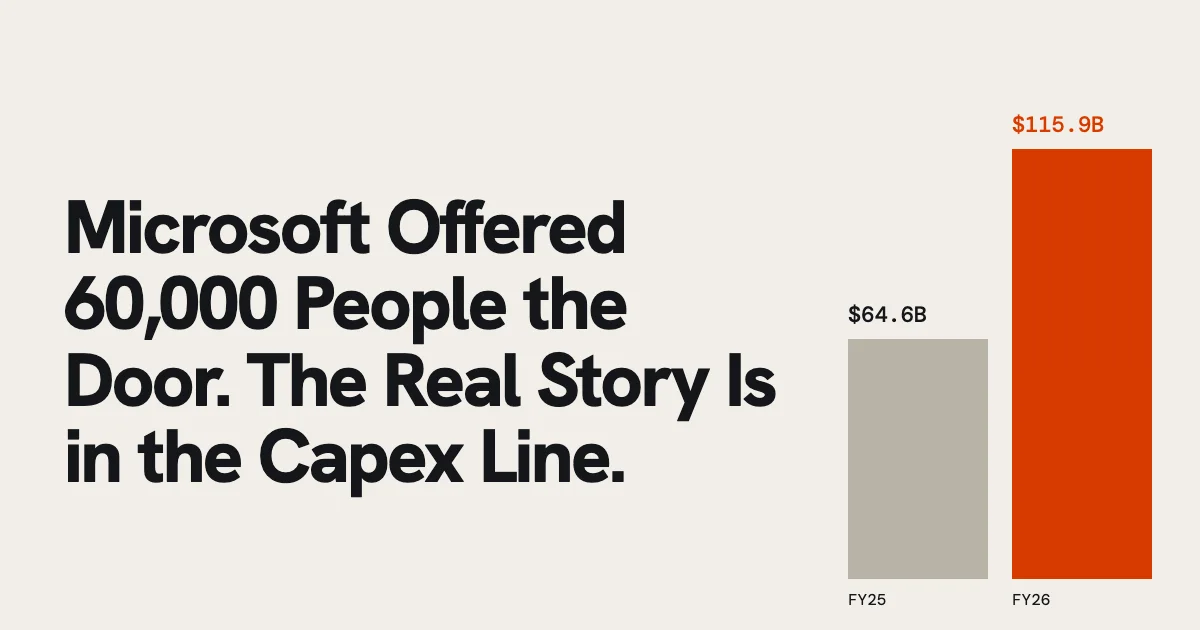
Microsoft Offered 60,000 People the Door. The Real Story Is in the Capex Line.
The headline reads as an AI layoff. Read the spending next to the revenue and a different reason shows up, one that will land at Google and Meta next.

Security
Claude Code’s “Don’t Ask Again” Button Has Put 2,539 Secrets on Public GitHub
A permission shortcut saves the exact command you approved, password included, into a project file that often gets committed. The bigger lesson is that AI coding agents have created new places for secrets to hide, and the usual scanners are not looking there.